
Every game on Pikashowsgames opens straight in your web browser. There is no app store, no installer and no account to create. For many players that feels almost too easy, so it is fair to ask how it actually works. This guide explains, in plain language, what happens between pressing Play and seeing the first level.
What "HTML5 game" means
HTML5 is the current version of the language that web pages are written in. Around it sit a group of browser technologies that games use every day:
- JavaScript runs the game logic: the rules, the scoring, the physics and the controls.
- Canvas is a drawing surface inside the page. 2D games paint every frame onto it, usually 60 times per second.
- WebGL lets the browser use your graphics card, which is how 3D racing and driving games run smoothly.
- Web Audio plays music and sound effects with very little delay.
- Local storage lets a game remember small things, such as your best score or the last level you reached.
All of these are built into Chrome, Edge, Firefox, Safari and other modern browsers. That is why the same game works on a Windows laptop, a Mac, an Android phone and an iPhone.
What happens when you press Play
- Your browser downloads the game files: a small HTML page, the JavaScript code, images and sounds. Most of our games are only a few megabytes.
- The files are stored in your browser's temporary cache, so the second time you play, the game usually starts faster.
- The game code starts running inside a protected area of the browser. It cannot read your files or install anything on your device.
- When you close the tab, the game stops. Nothing keeps running in the background.
So technically you do download something, in the same way you download the images on any web page, but it is temporary and handled entirely by the browser.
The game loop: how a game runs 60 times a second
Every action game, from a simple runner to a 3D racer, is built around one idea called the game loop. The loop is a short piece of code that repeats again and again for as long as the game is open. Each time it runs, it does three jobs in order:
- Read the input. Has the player pressed a key, tapped the screen or moved the mouse since the last time?
- Update the world. Move the car a little further, apply gravity to the character, check whether a ball has hit a wall, add points to the score.
- Draw the picture. Clear the screen and paint everything again in its new position.
In a browser, the loop is usually driven by a feature called requestAnimationFrame. It asks the browser to run the game's code just before the screen refreshes, which on most phones and monitors happens 60 times per second. Some newer screens refresh at 90, 120 or even 144 times per second, and a well-made HTML5 game will simply run faster and smoother on them.
Sixty frames a second means the game has roughly 16.7 milliseconds to do all three jobs. If the work takes longer, a frame is skipped and you notice a small stutter. That is why a game might feel perfectly smooth on a new phone but a little jumpy on an older one: the older device simply needs more time for each frame.
Why games use "delta time": good browser games measure how much time has really passed between two frames and move objects by that amount. That way a car crosses the screen in the same time on a fast computer and a slow phone, even if the slow phone draws fewer frames along the way.
How your key presses and taps reach the game
Browsers send the game a small message, called an event, every time something happens. A key going down, a key coming back up, a finger touching the glass, a mouse button being released: each one is a separate event. The game listens for the events it cares about and remembers them until the next turn of the game loop.
- Keyboard events tell the game which key was pressed. That is how arrow keys, WASD and the space bar work.
- Touch and pointer events report where your finger or mouse is on the screen. On-screen joysticks and buttons are simply areas of the screen that react when a touch lands inside them.
- The Gamepad API lets a browser read an Xbox, PlayStation or other compatible controller connected by USB or Bluetooth. Many racing and action games support it, so it is worth trying a controller if you have one.
This also explains a common puzzle: sometimes a game ignores your keyboard until you click on it. The browser only sends key presses to the part of the page that has "focus", and clicking inside the game gives it that focus.
Physics and collisions, made simple
When a ball bounces off a wall or a car crashes into a cone, the game is running a collision check. Most browser games keep this simple to stay fast. Instead of checking every pixel of a car, they wrap each object in an invisible shape, usually a rectangle or a circle, and check whether those shapes overlap. If they do, something happens: the level restarts, the score goes up or the ball changes direction.
Games with more realistic movement, such as bike and truck games with bouncy suspension, use a small physics engine. It applies gravity, friction and springiness to each part of the vehicle on every frame. That is what makes a truck wobble on a wooden bridge or an egg slide off the roof of a car when you brake too hard.
Loading screens: what is being downloaded?
The loading bar you see before a game starts is the game fetching its assets: the pictures, sounds, music, 3D models and level data it needs. A few tricks keep this quick:
- Sprite sheets pack dozens of small images into one big picture, so the browser makes one request instead of fifty.
- Compressed audio keeps music and sound effects small enough to download in seconds.
- Lazy loading means some games only download later levels when you reach them.
- Caching stores the files after the first visit, which is why a game usually starts much faster the second time.
If a loading bar stops at the same point every time, it usually means one file could not be downloaded, often because of a weak connection or an extension that blocks it. Our step-by-step fix guide covers what to do.
The tools developers use to build browser games
Very few browser games are written completely from scratch. Developers usually start with a game engine or library that already handles drawing, sound, input and physics, and then build their own game on top. Some of the best-known names are:
| Tool | Best known for |
|---|---|
| Phaser | Popular open-source framework for 2D browser games |
| PixiJS | Very fast 2D drawing on top of WebGL |
| Three.js | The most widely used library for 3D graphics on the web |
| Babylon.js and PlayCanvas | Complete 3D engines that run in the browser |
| Construct | Building games visually, with little or no code |
| Unity, Godot and Cocos | Full game engines that can export a game to run on the web |
Another important technology is WebAssembly, which became available in all the major browsers in 2017. It lets code written in languages such as C++ or C# run in the browser at close to its normal speed. That is how big engines like Unity can turn a game designed for computers into a version that runs on a web page.
Full screen, screen rotation and "add to home screen"
Browsers give games a few extra powers that make them feel more like apps. The Fullscreen API lets a game fill the whole display when you press the full-screen button. On phones, some games can also ask the screen to stay in landscape while you play. And on both Android and iPhone you can add a website to your home screen, so a favourite game opens with one tap, just like an app. Our guide to playing on phone and PC explains how.
A quick glossary
- FPS (frames per second): how many times the picture is redrawn each second. 60 is the usual target.
- Canvas: the drawing area inside the page where 2D games paint each frame.
- WebGL: the browser feature that lets games use your graphics card, mainly for 3D.
- Asset: any file a game needs, such as an image, a sound or a 3D model.
- Cache: the browser's temporary store of files, which makes repeat visits faster.
- Local storage: a small space in your browser where games save scores and progress.
Where is my progress saved?
Most browser games save progress in your browser's local storage. That has two practical effects:
- Your levels and high scores stay on this device and this browser. If you switch from your phone to your laptop, you start again.
- Clearing your browsing data, or playing in a private or incognito window, can erase saved progress.
If a game keeps "forgetting" your progress, check whether your browser is set to delete site data when it closes.
Why some games need a newer browser
3D games rely on WebGL and on your device's graphics hardware. An older browser, an outdated graphics driver or a switched-off hardware acceleration setting can make a game load slowly or show a black screen. Updating the browser fixes most of these problems. Our guide Game Won't Load? walks through the common fixes step by step.
Are HTML5 games safe?
A game running in your browser has far fewer permissions than an installed app. It cannot access your photos, contacts or files unless you choose to upload something, and none of our games ask you to. The usual web safety rules still apply: keep your browser updated, and never type passwords or payment details into a page you do not trust. Pikashowsgames never asks for payment, and every game on the site is free to play.
What came before HTML5
Many people remember browser games built with Adobe Flash. Flash needed a separate plug-in, did not work on most phones, and Adobe ended support for it at the end of 2020. HTML5 replaced it because it is built into the browser itself and works on mobile as well as desktop. If you are curious about the longer story, read A Short History of Arcade Games.
Try it yourself
The best way to see HTML5 in action is to play something. A good first pick is a quick puzzle or a 3D driving game, so you can see both 2D canvas and WebGL at work:
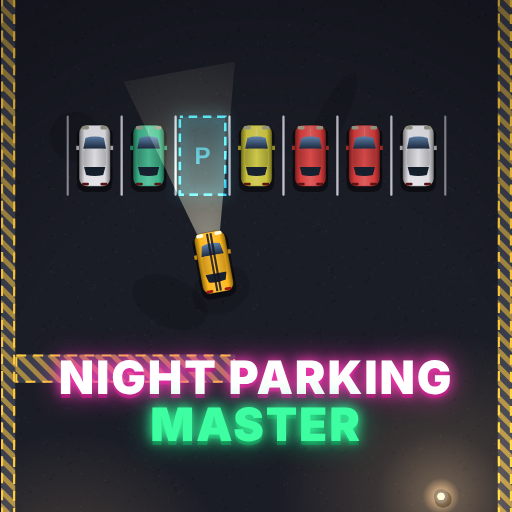 Night Parking MasterNight Parking Master is a top-down car parking game set in a quiet city after dark. Your job sounds simple: drive you... Play free
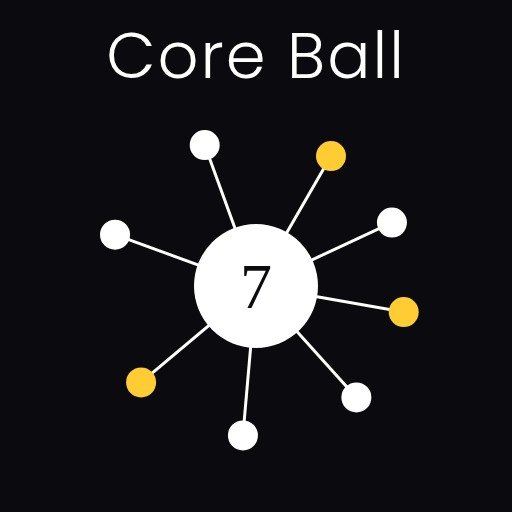 Core BallCore Ball is a minimal timing game that is easy to start and surprisingly hard to master. A large core spins in the m... Play free